
Back up the seed phrase offline the day you create the wallet—before you fund it—because the app on your phone is replaceable and the words are not.
Quick answer
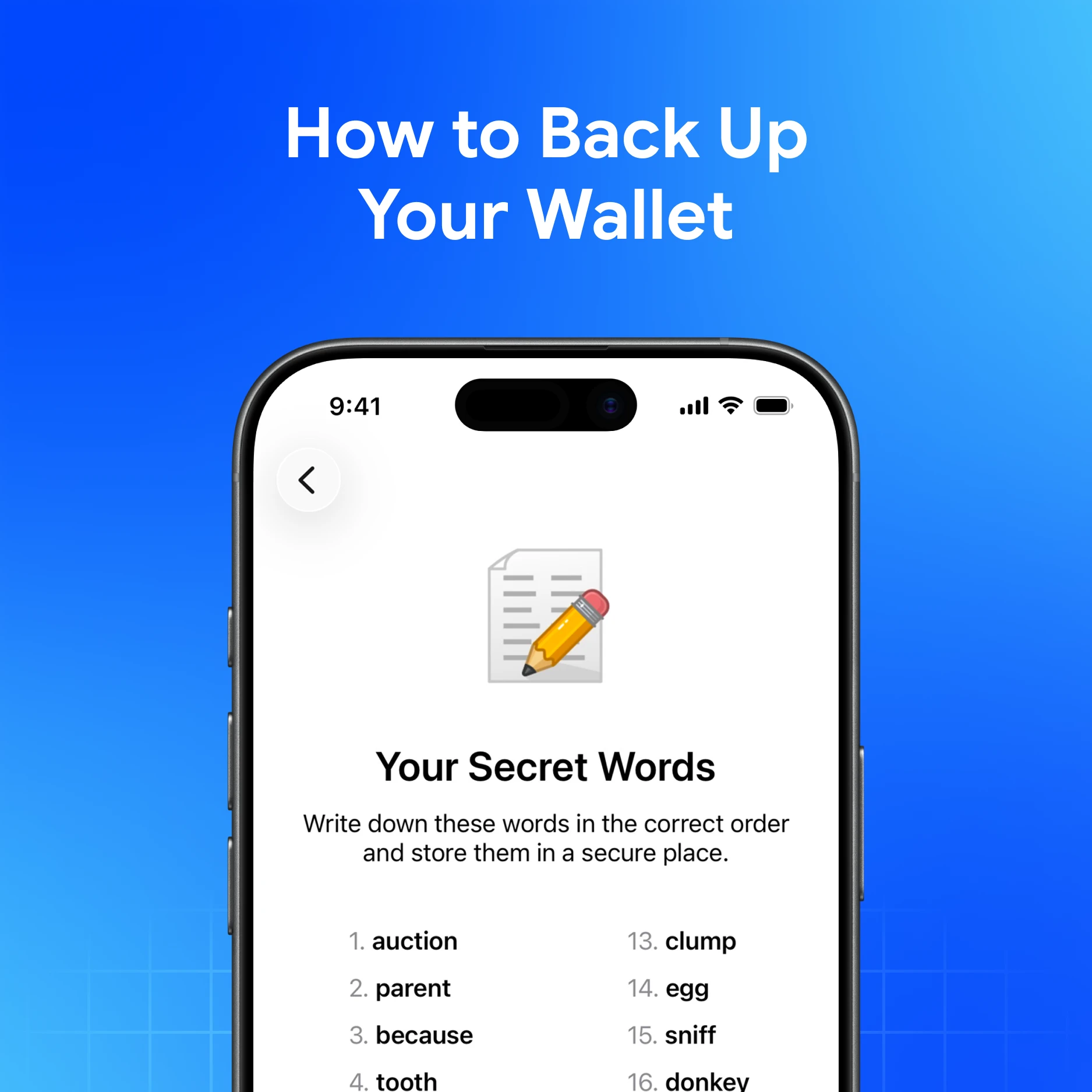
In My Wallet, open the official app’s Backup / security settings, view your seed phrase (12 or 24 words), write it down offline, confirm the order, and store it where only you can reach it. My Wallet never stores your seed. Never photo it into the same camera roll you use daily. Never share it with “support.”
Before you start
- Download only from get.mywallet.io—not random APKs or lookalike sites.
- Have paper (or another offline medium) and a pen ready.
- Put the phone face-down away from other people and cameras.
- If someone is asking you to “share screen while you back up,” stop. That is a scam pattern.
Steps: back up in My Wallet
Exact menu labels can vary slightly by platform. At a high level:
- Open My Wallet and unlock the wallet you want to back up.
- Go to Settings, then open Security / Backup.
- Choose to view your seed phrase (secret words). Confirm any password or biometric prompt.
- Write every word in order, numbered 1…12 or 1…24. Do not rearrange. Do not skip.
- Hide the on-screen phrase. From your paper only, read the words back and check spelling.
- Store the paper (or offline medium) in a secure place. Consider a second offline copy in a different safe location if the balance matters.
- Optional: enable app lock, biometrics, and auto-lock so a stolen unlocked phone is harder to use—see security settings.
Help reference: What is a seed phrase? How to store a seed phrase?.
Good backups vs bad backups
Do
- Paper or offline encrypted storage
- Verify you can restore on a spare device before you need to (small test)
- Keep the backup away from shared drives and family photo albums
Do not
- Screenshot or photo on the wallet phone
- Email the words to yourself
- Save them in a chat “Saved Messages”
- Type them into any website form
- Hand them to anyone claiming to be My Wallet support
Quotable line: a backup in the cloud is a backup for whoever breaks the cloud account.
After backup: prove it works
- Keep a tiny amount of crypto on the wallet first.
- On a second device (or after a careful logout you understand), use import with secret words from your paper.
- Confirm balances match.
- Lock the paper away again.
If the restore fails, fix the written backup now—not after a broken phone.
Special case: TON Private Key
Backup settings can also expose a TON Private Key for use with other TON wallets. That key recovers TON access, not necessarily your full multichain wallet. Your seed phrase remains the primary full backup. See Help: TON Private Key recovery.
Download My Wallet
Download My Wallet, then back up before you deposit more than you can afford to lose to a lost phone.
FAQ
Does logging out delete my crypto?
No. Logging out removes local access. Assets stay on-chain. You need the seed phrase (or supported key) to get back in. Logging out does not delete on-chain assets.
I forgot my app password. Is the backup enough?
Yes—if you have the seed phrase. Import with secret words, then set a new password. Never give the phrase to someone offering to “reset” the password for you.
Can I back up later after I buy crypto?
You can, but you should not wait. Back up first, fund second.
Is one paper copy enough?
For small balances, often yes. For meaningful amounts, plan redundancy and physical risk (fire, theft, water).
Will support ask me to read my backup on a call?
No. Hang up. Read How to avoid crypto phishing scams.